
Moving Your Home Office to Costa Rica: How to Keep Working Between Shipments
Dan Chambers · November 27, 2026
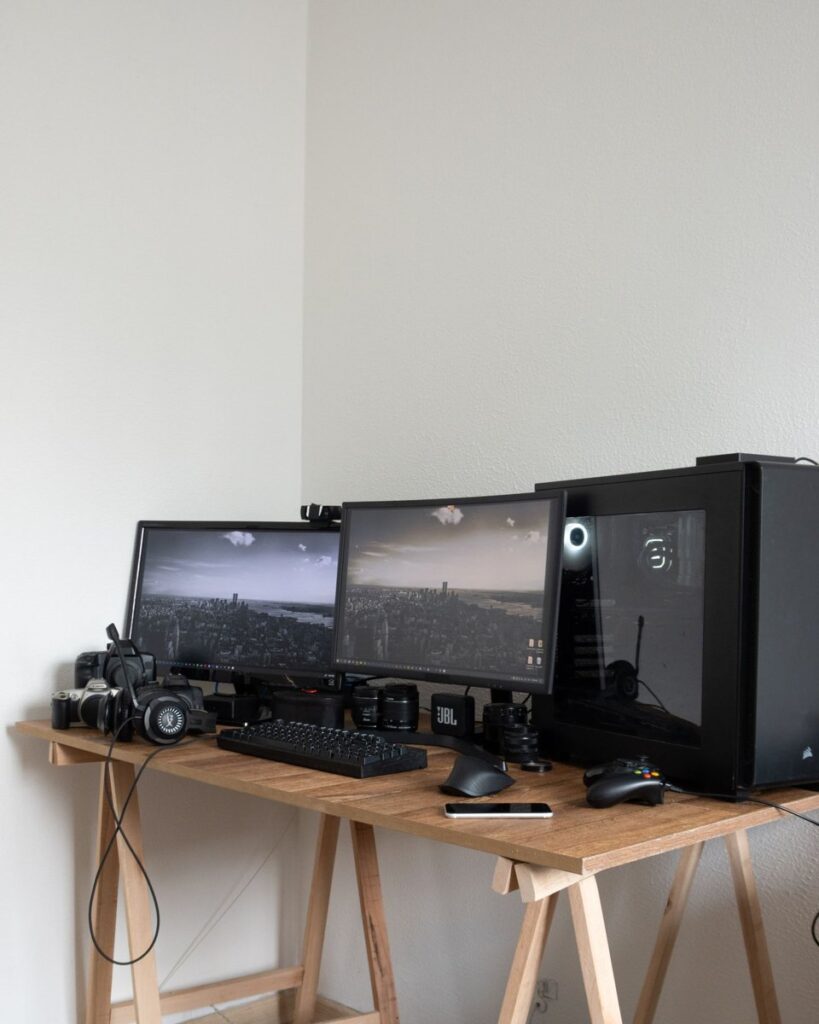
A home office can arrive with both monitors intact and still be unusable because the right power adapter or mount is in another box. Before shipping an office to Costa Rica, build two lists: what you need to do a normal day’s work while the shipment is in transit, and what can wait for the permanent setup. Test the first list before packing the second. An hour spent working from the temporary kit will reveal more than an inventory of everything on your desk.
Rehearse an Ordinary Working Morning
Pick three tasks that represent your actual work. A designer might open a large project, review it with a client and deliver a file. A bookkeeper might sign in to a protected account, compare two records and print an approved form. Try the tasks using only the items you intend to have with you. Note every time you reach for something that belongs to the freight list, from a headset receiver to a second authentication device.
Separate ownership from convenience. If a monitor, laptop or dock belongs to an employer, obtain permission for the intended move before including it among your household effects. Ask who can approve the transport method and whether the employer wants to arrange its own shipment. Keep access credentials and sensitive records out of the packing paperwork. The coordinator needs identification and handling details for the equipment, not the information stored on it or the passwords used to operate it.
Inventory the Monitor as a Working System
Photograph the front, back, stand and connection panel. Record model numbers and the type of connection you actually use, especially if two displays look alike. A photograph of the cables connected at the desk is often more helpful at destination than a bag full of unidentified adapters. Label both ends before disconnecting them. Where a power supply is external, record which device it belongs to and the information printed on its label.
Take a close photograph of each identifying label before packing. For example, Dell’s monitor identification guide shows owners where to look for a service tag on supported products. Other manufacturers use different labels. Keep the full identifiers in your own records and share only what the service provider needs. A useful inventory entry can identify the item clearly even if you choose not to print its full serial number on the outer carton.
Look behind the screen before discarding the original stand. A monitor that currently sits on an arm might need its stand in a rental where the desk will not accept a clamp. Identify which screws and spacers go with the arm and which go with the original base. If you plan to leave the arm behind, try the replacement configuration before packing. That simple bench test can reveal a missing plate that is harder to source after arrival.
Price Packed Screens, Not Diagonal Inches
Screen diagonal is a display specification, not a shipping dimension. Ask your packer for the finished width, depth, height and weight of each package. Describe curved screens, projecting stands and any original inserts you still have. Show the packer the actual inserts. A box with the manufacturer’s logo but missing lower supports may need a different packing approach. Ask for separate prices for preparation and freight so you can see which part of the move drives the decision.
For illustration, a protected monitor carton measuring 0.80 by 0.52 by 0.22 meters occupies just over 0.09 cubic meters. Two such cartons occupy just over 0.18 before adding anything for the desk, chair or accessories. A large desk top in its own protection can change the proposal more than the screens. Ask for a version covering the electronics alone and a version including the whole workstation. Keep all other shipment details the same for that comparison.
Plan Around the Destination Desk
Get a photo and measurements of the desk you will use in Costa Rica. Check the usable depth, where the chair fits and whether a fixed shelf limits screen height. A two-display setup that works against a blank wall can be awkward beneath a cabinet. Ask about available outlets, internet installation and where the equipment can be unpacked securely. Have a qualified local professional check any electrical compatibility questions for your actual devices and address.
Think about the desk surface as well. A thick apron under the back edge can prevent your monitor arm from clamping where you expect. A glass top may have restrictions on hardware attachment. Get the furniture manufacturer’s guidance before relying on a mounting idea. If you do not yet know which desk will be available, keeping the manufacturer-supplied stand with the monitor gives you a second arrangement without committing to a new piece of furniture.
Make the First Unpacking Session Count
Create a small installation carton containing the equipment map, stand parts, labeled leads and ordinary peripherals. Keep each accessory with its reference rather than making an undifferentiated box of cables. Write “office setup” on the inventory alongside the cartons that contain the displays. Tell the receiving person whether you need room delivery and unpacking, or only receipt of sealed packages. Identify a clean surface the crew can use without leaning anything against the screens.
When the cartons arrive, compare their labels with the list and look for visible packaging damage before opening them. Check that display, stand, power adapter and input cable are matched correctly. Follow the manufacturer’s setup instructions and record functional concerns separately from visible shipping damage. If one monitor is delayed, your tested temporary kit should still let you carry out the work you rehearsed. Use the household goods service page to prepare the permanent equipment list while you keep the working essentials accessible.